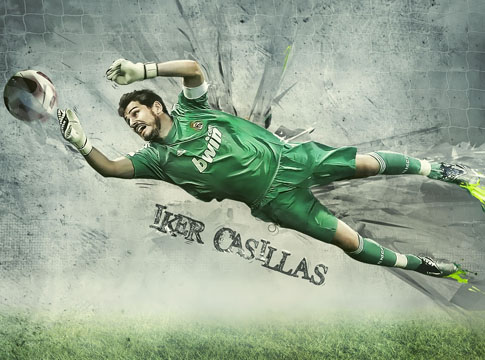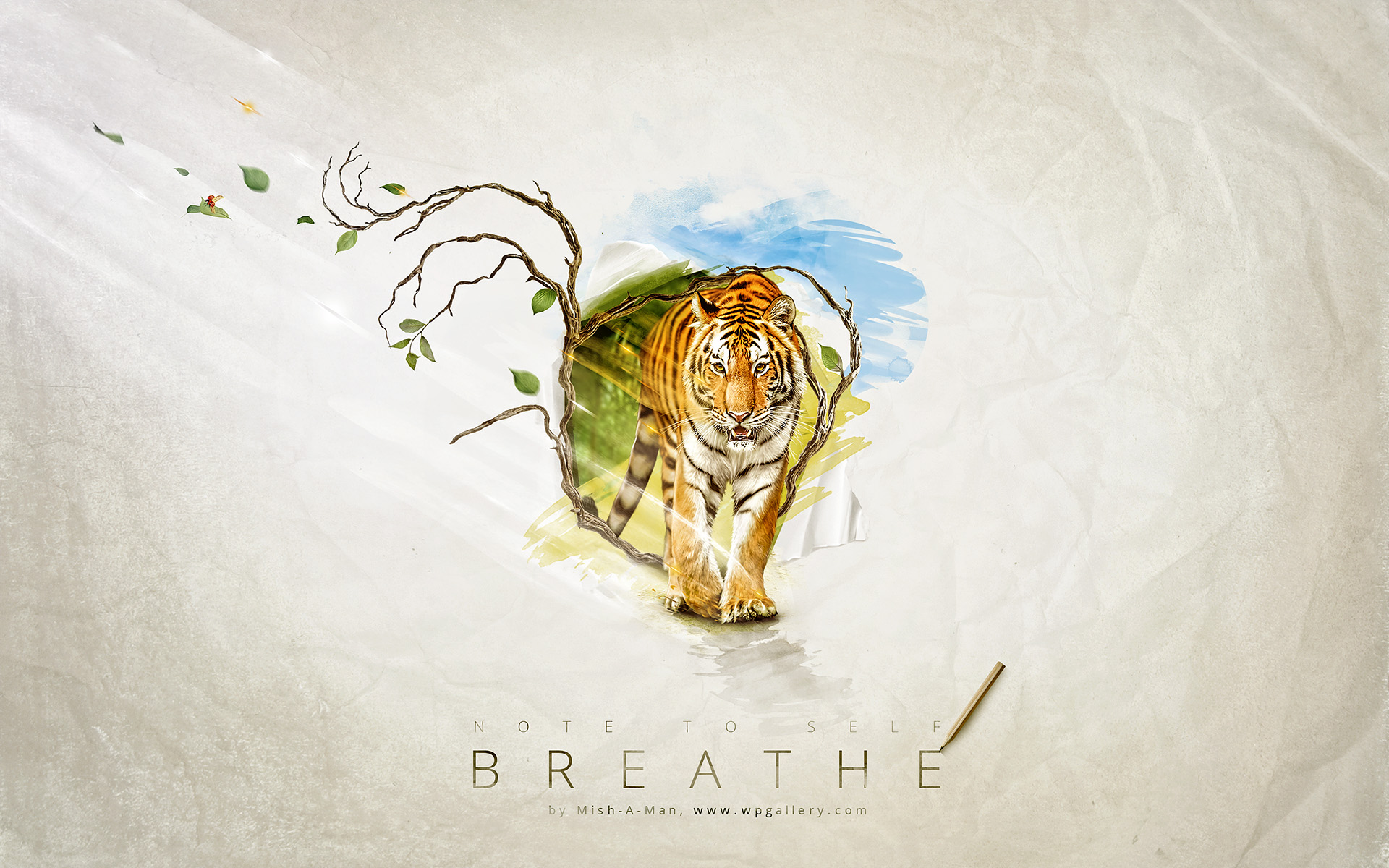
In this example I will show you how to make the ends of a layer transparent and not to erase its complex. Of course, for this you will need the mask and this is how the mask functions. Open any picture that you want. Now we will need to transport her to a white background and we will do next: in the panoe Layers with a right mouse click on Background and you will see an extra menu. Then click with your left mouse on Duplicate Layers and name him: maska. With a left mouse make a background active by clicking on the Background. Press button D so the color of a background can become white and then make a total combination with her by a button Ctrl+Backspace.
Add vector mask
Go back to the layer: maska. In the panoe Layers you will find option Add vector mask (the second one from the left side ) with wich you are connecting a mask with a layer like it is shown on the picture below.
Gradient tool
Fix your color to be of a first plan -white and the background -black and then choose a tool for gradient (gradient tool). It will show extra options for this tool at the top. Check to see if a coating is from white to black and turn on Radial Gradient (round one) , like the pictures below.
Lets go back to our picture. The mask is active and the coatings are fixed, a Gradient Tool is active... we are left to use it. Click with your left mouse in the center of a picture and then by not letting it loose move it towards the corner or the end of a picture, but not all the way till the end. Let go of the left mouse. You will see a layer that is totally transparent where the caoting is ended with black color.
Possibilities of a treatment with mask are very big, in this example you are given only a basic and its up to you to try and experiment something more.